PDS Basic Training Guide
Welcome to PDS Training!
PDS Solutions has one goal in mind, to enhance the way you do business. Our philosophy is this, simple and intuitive! We strive to deliver the best tools, resources, and support available in the industry, that is our goal to you, our valued client.
It’s an exciting time here at PDS Solutions, and I am pleased to share that you will see some awesome improvements to how our team delivers training, support and education to you. This guide is designed to provide basic portal training to you and although the topics will be discussed during one of our many training sessions, you may use this as a reference to begin exploring the system to introduce yourself and note any specific questions you may have. Please direct any questions related to any of our materials to support@petrodatasync.com.
Portal Introduction
Dashboard / Home Screen
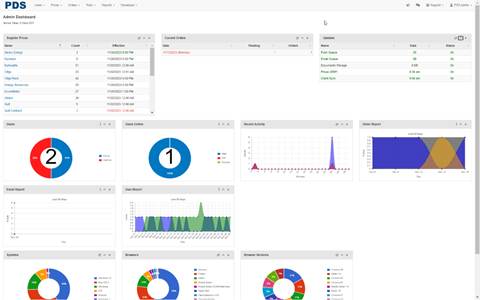
The dashboard or home screen serves as the landing page when logging into the portal and displays several pieces of statistical information.
Logo
Users can click on logo in the upper left corner anytime to return to the dashboard or home screen
Menu
The menu items will appear across the top of the screen for the features the customer is enabled for
Refresh

Minimize

Close

Drill Down
Most of the detail information displayed on the portal has drill down capability, for example, a customer can drill down their current balance to see what make up the total
Search
The search or filter option is available on most of the regular menu screens and provide additional search criteria to help narrow the user desired results
Search Bar

Search Icon

Search Button
Quick Filter
List Screens
The list screens are used to display results from the various menu options. There are many options associated with list screens that can be used to narrow in on results.
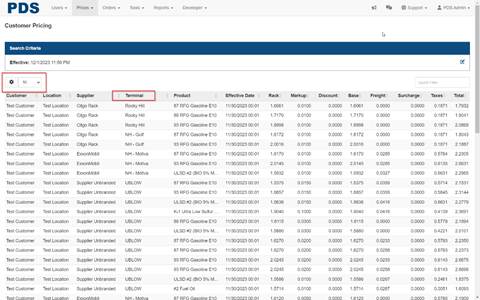
Gear Icon
Select the fields that you wish to display in the search results
Row Results
Select the number of results from the search to return to the screen
Column Sort
Click the column heading to sort the results in ascending or descending order
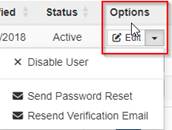
Results Options
Click the dropdown arrow for options associated with results of your search
Additional Options
Click the options for a drop down of additional options for list screen. Export to excel and print are typically the most common among all list screens
Help
The portal features an integrated help system designed to provide users with quick and easy answers to questions. There are several ways to access the help features.
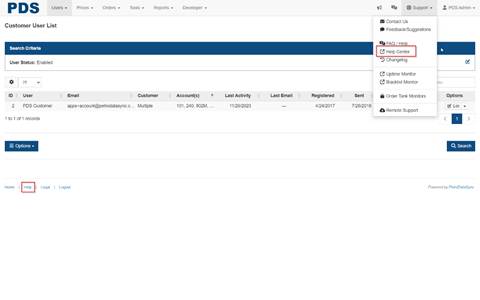
Help Center
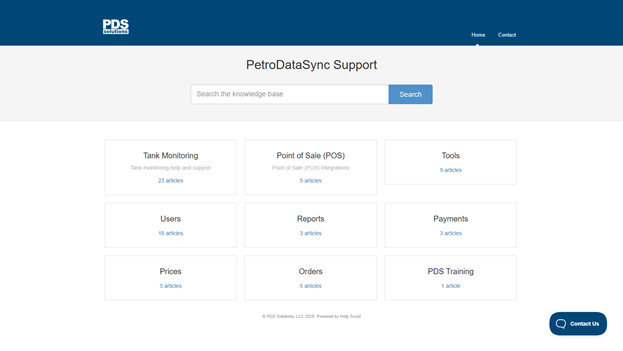
The help center is a knowledge base providing quick answers to common questions.
FAQ / Help
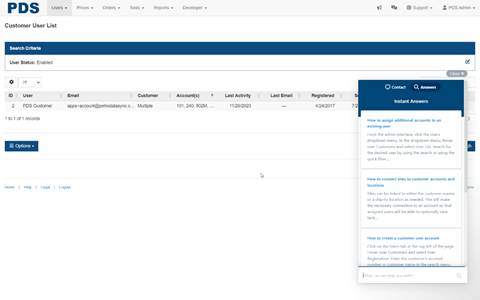
The FAQ/Help function is searchable for quick articles and how to’s related to the portal. The search bar is located at the bottom of the window.
Field Level Help
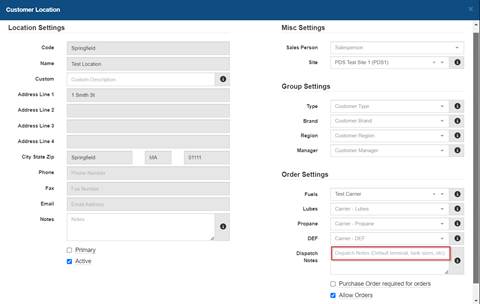
The field level help is visible in every data entry field and will display the criteria for that field. The text for the help is displayed in a light gray font.
Field Level Help Icon

Customer View
Login Screen (impersonation)
This will allow you to log in as the customer and view the portal through the eyes of the customer
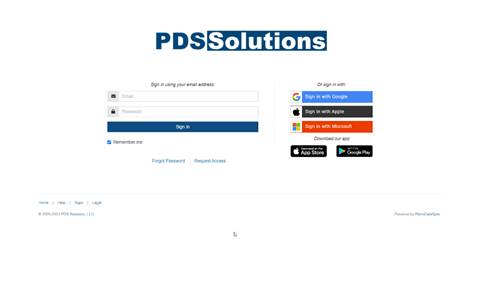
Enter the customer's email first and then your employee/admin email separated by a space
Password
Enter your employee/admin password.
Dashboard
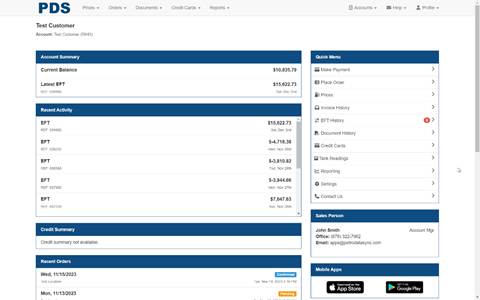
The dashboard or home screen serves as the landing page when logging into the portal and displays several pieces of statistical information.
Logo
Customer can click on logo in the upper left corner anytime to return to the dashboard or home screen
Menu
The menu items will appear across the top of the screen for the features the customer is enabled for
Accounts
Customer can switch between accounts when more than one account is assigned to the customer
Help
The help menu has features like support, contact us, and send a message. When a customer sends a message, a member of your admin team will receive the information to assist the customer.
Support
The portal also has a light weight built in ticketing system to help organize requests and responses to customers, a member of your admin will be responsible for managing this feature if you chose to use
Profile
Provides basic user information and settings as well as links to your mobile app downloads
Dashboard Screen
Account Summary
Recent Activity
Credit Summary
Recent Orders
Announcements
Quick Menu
Sales Person
Mobile Apps
Other Features
Drill Down
Most of the detail information displayed on the portal has drill down capability, for example, a customer can drill down their current balance to see what make up the total
Search
The customer view has the same search and filter capabilities as the admin portal to narrow in search results
Quick Filter
Optional filter search on many screens
Options
The options button will appear on many portal screens offering alternative solutions like exporting, printing, or making a payment
Admin View
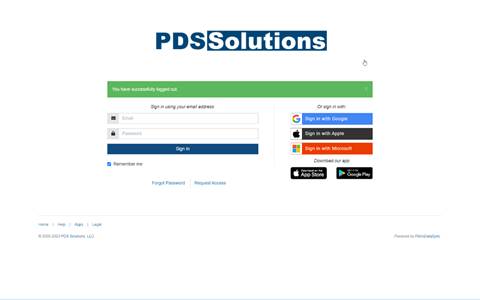
Login Screen
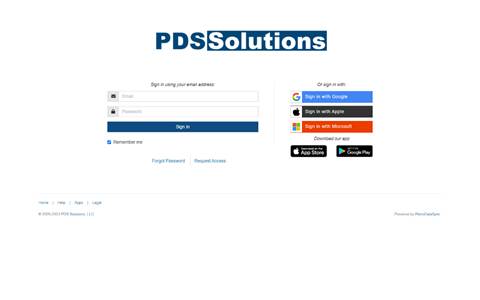
Enter email address or username
Password
Enter password and click sign in
Alternatively sign in with your Microsoft, Google, or Apple account. It requires your registered email to match with the authentication service
Forgot Password
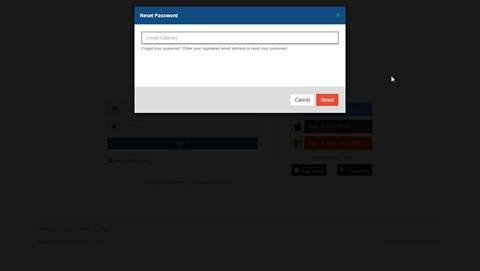
Forgot your password? Enter your registered email address to reset your password. The user will receive an email with instructions on resetting their password.
Request Access
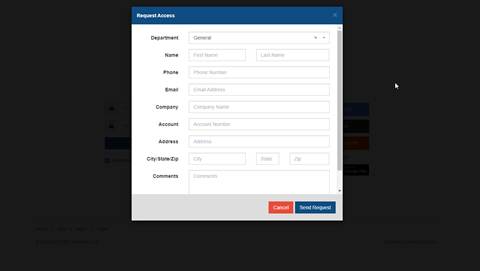
The request access link will allow a user to request access to the portal. After pressing the send request button, an email request will be generated to the admin to set up a new user for that customer.
Dashboard / Home Screen
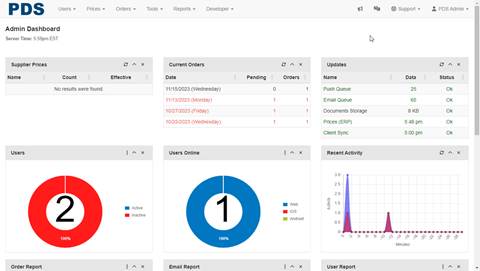
The dashboard or home screen serves as the landing page when logging into the portal and displays several pieces of statistical information.
Logo
The portal is branded with your logo which will appear in the upper left corner of the screen and is linked to the dashboard or home screen
Menu
The main menu is displayed across the top of the page. The arrow to the right of the menu indicates a drop down with additional sub menu items
Announcements
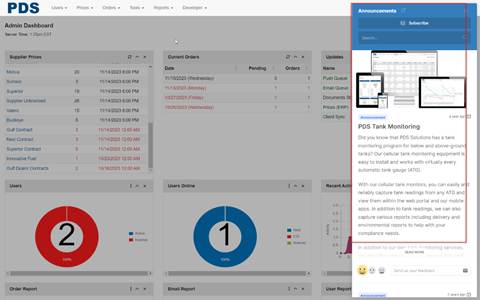
Announcements from PDS will be posted here. This includes service alerts, new features, and other general communications from PDS
Subscribe
The subscribe button allows employees users to sign up for announcements to be notified via email when new announcements are posted
Search
The search box allows users to search for a past announcement that has been released
FAQ / Help
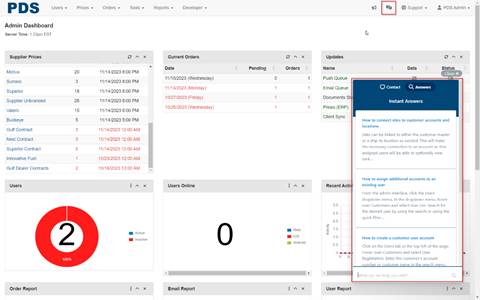
The question mark icon opens a help function allowing users to search for help in the space at the bottom of the window
Contact
The contact feature will bring up an email option allowing users to submit an email request to the build in ticket system which will notify an admin user of the request
Previous Conversations
The previous conversations link at the bottom of the window will display previous submitted requests and a status of the request
Answers
The answers feature provides several built-in help topics that can be searched. The user can enter search criteria in space at the bottom of the window to find related topics
Support Menu
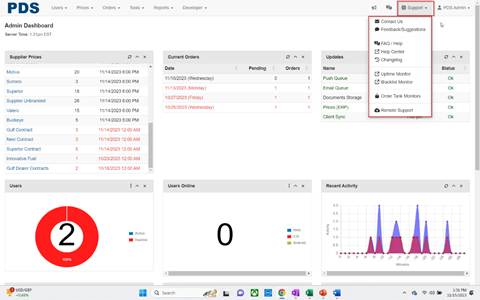
The support menu provides options for additional resources and help functions
Contact Us
The contact us feature will bring up an email option allowing users to submit an email request to the build in ticket system which will notify an admin user of the request
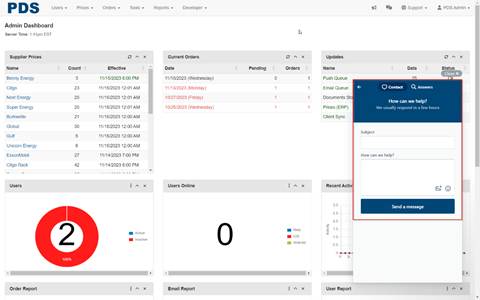
Subject
Enter a subject for the request
How can we help?
Enter message details in the space provided. There is also a file upload option as well as an emoji option to add to the message
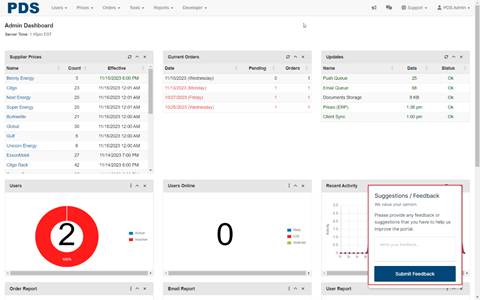
Feedback / Suggestions
The feedback option allows a user's and customers to provide valuable feedback to you for evaluation. Simply enter feedback in the space provided and click submit feedback
FAQ / Help
The FAQ / Help icon opens a help function allowing employees to search for help in the space at the bottom of the window
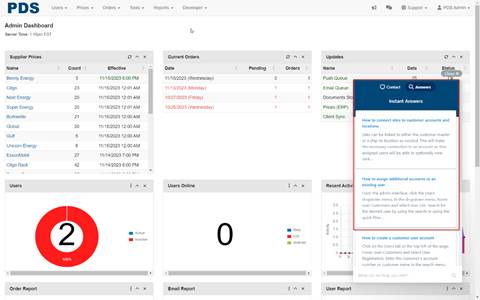
Contact
The contact feature will bring up an email option allowing users to submit an email request to the build in ticket system which will notify an admin user of the request
Previous Conversations
The previous conversations link at the bottom of the window will display previous submitted requests and a status of the request
Answers
The answers feature provides several built-in help topics that can be searched. The user can enter search criteria in space at the bottom of the window to find related topics
Help Center
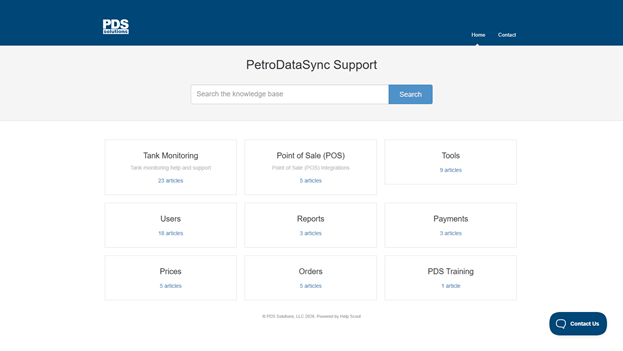
The help center is designed to provide answers to routine questions and articles from our knowledge base
Home
The home button will direct users to the main help center page
Contact
The contact feature will bring up an email option allowing users to submit an email request to the build in ticket system which will notify an admin user of the request
Search
The search bar allows a user to search for any keyword
Customers
The customers area displays frequently asked questions for customers
Employees
The employee's area displays frequently asked questions for employees
Tank Monitoring
The tank monitoring area displays frequently asked questions for tank monitoring users
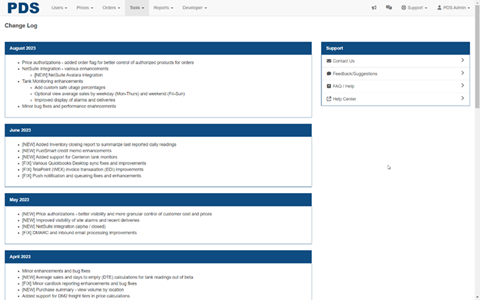
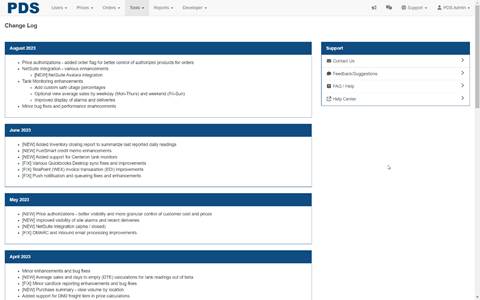
Change Log
The change log is a listing of modifications and enhancements to the portal that are released in scheduled updates
Uptime Monitor
The uptime monitor is a tool that provides various statistics and recent history of the website with some simple dashboard displays
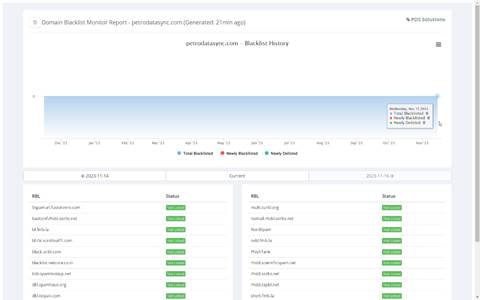
Blacklist Monitor
The blacklist is a basic access control mechanism that allows through all domains, websites, and emails except those explicitly mentioned. The items on the list are denied access. The dashboard screen shows a timeline and history of blacklist sites along with the status
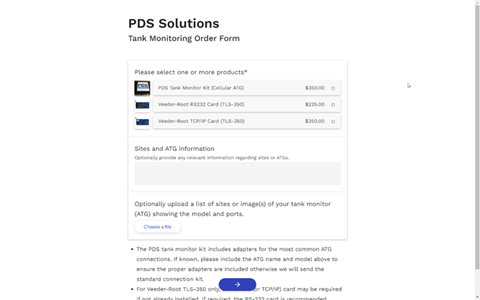
Order Tank Monitors
The screen provides quick links to order monitors and veeder-root cards for sites. For additional information on monitoring, contact support@petrodatasync.com
Remote Support
The remote support page is a quick link to screen sharing should our team need to view an error message or steps to replicate to diagnose the support request
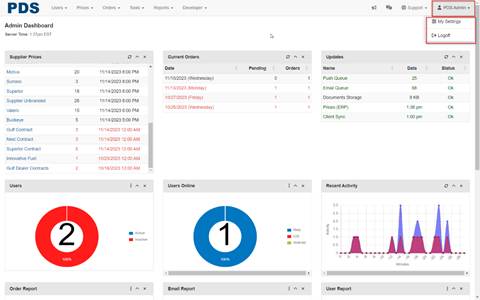
PDS Admin Menu
The admin menu displays my settings for the user in addition to the log off option
My Settings
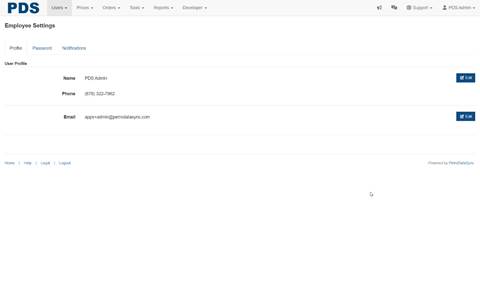
User Profile
Name
The user who is currently logged in
Phone
The phone number for the current user
The email address for the current user
Password
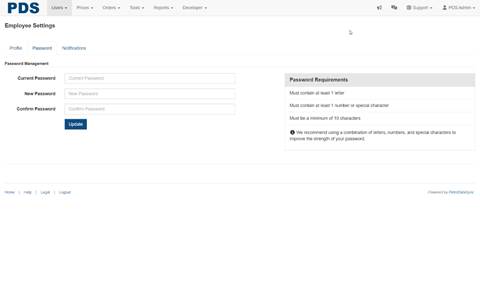
Password Management
Current Password
The current password for the user
New Password
The new password for the user
Confirm Password
The reenter the new password for confirmation
Password Requirements
· Must contain at least 1 letter
· Must contain at least 1 number or special character
· Must be a minimum of 10 characters
We recommend using a combination of letters, numbers, and special characters to improve the strength of your password.
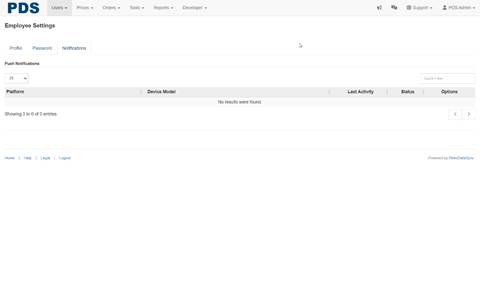
Notifications
The notifications screen displays push notifications that have been sent along with some statistical information including platform, device model, last activity, status, and options
Logoff
The logoff option will sign the user out of the portal and land back on the login screen