
PDS Tools & Reports Training Guide
Tools
Email Tracking
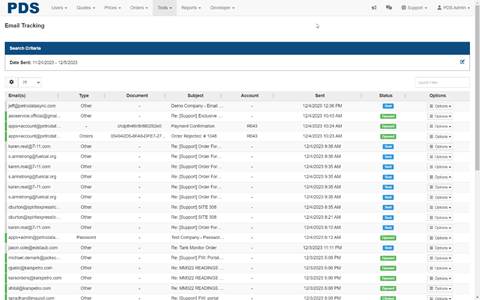
The email tracking list is used to track the status of emails being sent from the portal
Gear Icon
Select the fields that you wish to display in the search results
Results Drop Down
The results drop down displays the number of rows or all to return in your search
Field Options
| ID | Email(s) | Type |
| Document | Subject | User |
| Account | Customer | Service |
| Sent | Updated | Status |
| Options |
|
|
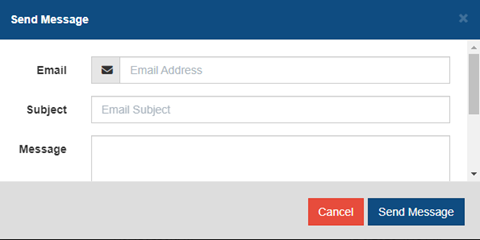
Send Message
The send message option allows you to create a message manually and send
Email Block List
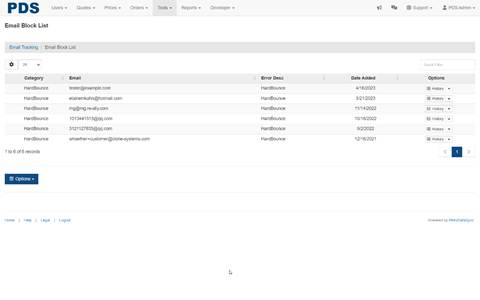
The email block list displays the emails that are blocked or have been blacklisted in the portal
Gear Icon
Select the fields that you wish to display in the search results
Results Drop Down
The results drop down displays the number of rows or all to return in your search
Field Options
| Category | Error desc | |
| Date added | Options |
|
Customer Tickets
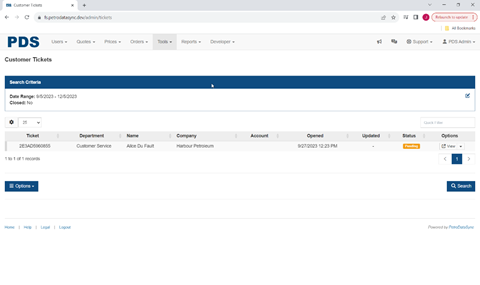
The customer tickets screen is used to show the customer requests that have been received into the system
Gear Icon
Select the fields that you wish to display in the search results
Results Drop Down
The results drop down displays the number of rows or all to return in your search
Field Options
| Ticket | Department | User ID |
| Name | Company | Account |
| Opened | Updated | Status |
Ticket Departments
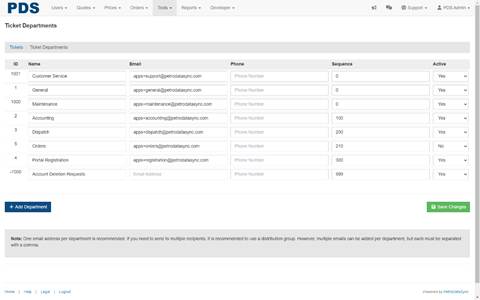
The ticket departments are used to route customer requests to the appropriate department or team for review
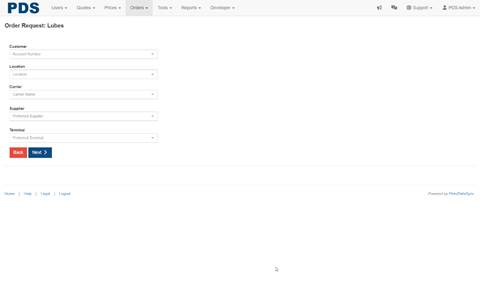
Order Request Entry
The order request entry screen is used to enter orders for fuels, lubes, propane, and DEF
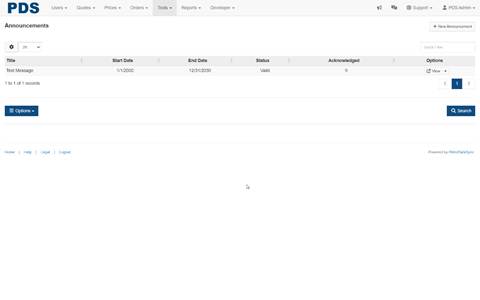
Announcements
The announcements screen is used to show the different announcements that are configured for the portal
Gear Icon
Select the fields that you wish to display in the search results
Results Drop Down
The results drop down displays the number of rows or all to return in your search
Field Options
| ID | Title | Channel |
| Cust type(s) | Cust brand(s) | Cust region(s) |
| Cust manager(s) | Sales Person(s) | Customer(s) |
| Start date | End date | Date created |
| Date updated | Status | Acknowledged |
| Options |
|
|
New Announcement
Select the group to create a new announcement for
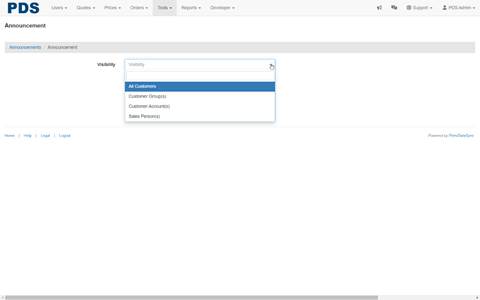
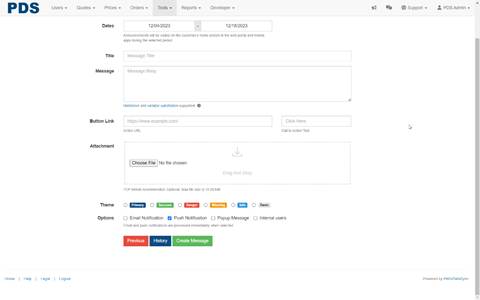
Create Announcement
This screen will allow you to create a new announcement
Credit Manager
The credit manager will allow you to set credit hold and statuses for customers
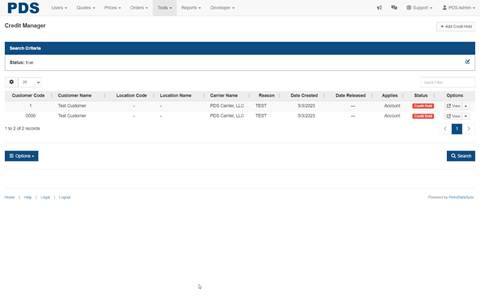
Gear Icon
Select the fields that you wish to display in the search results
Results Drop Down
The results drop down displays the number of rows or all to return in your search
Field Options
| ID | Customer ID | Customer code |
| Customer name | Location ID | Location code |
| Location name | Carrier ID | Carrier name |
| Reason | User created | Date created |
| User released | Date released | User updated |
| Applies | Status | Options |
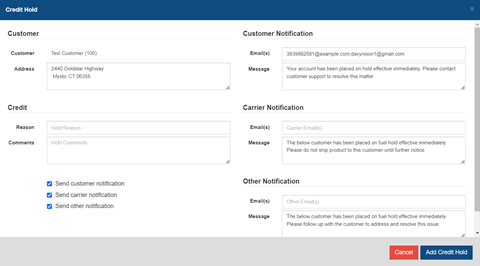
Credit Hold
The credit hold screen allows you to update and create credit hold, notification, and notes
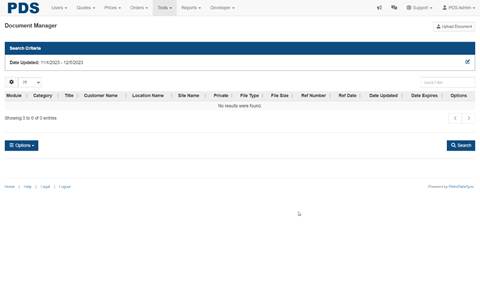
Document Manager
The document manager is used to store documents in the portal
Gear Icon
Select the fields that you wish to display in the search results
Results Drop Down
The results drop down displays the number of rows or all to return in your search
Field Options
| ID | Module | Category |
| Title | Customer code | Customer name |
| Location code | Location name | Site code |
| Site name | Customer type | Customer brand |
| Customer region | Customer manager | Private |
| File type | File size | Ref number |
| Ref date | Date updated | Date expired |
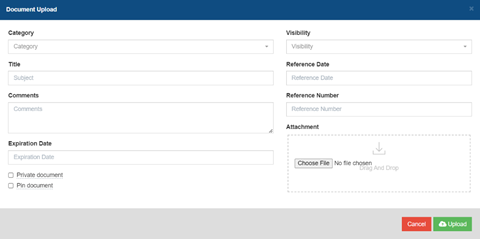
Upload Document
The upload document allows you to upload any document to the portal for future viewing
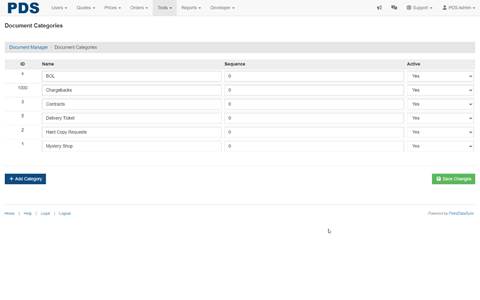
Document Categories
The document categories is used to create and main categories for the different document types that will be used
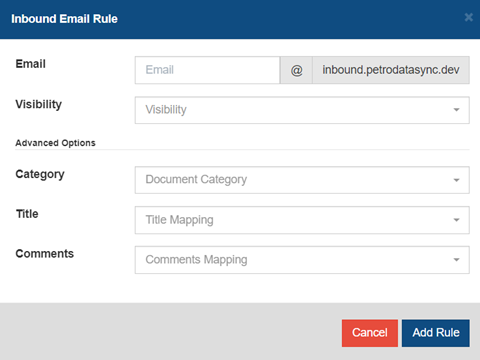
Inbound Email Rule
The inbound email rule is used to create rules
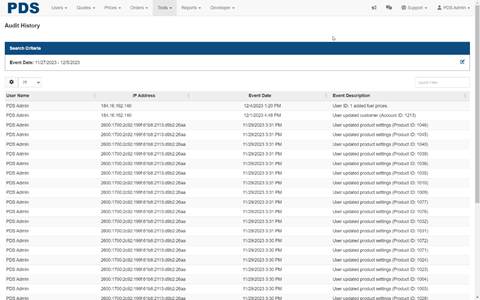
Audit Log
The audit log captures every transaction and description that is being performed in the portal
Disclaimers
The disclaimers screen is used to manage the various disclaimers in the portal
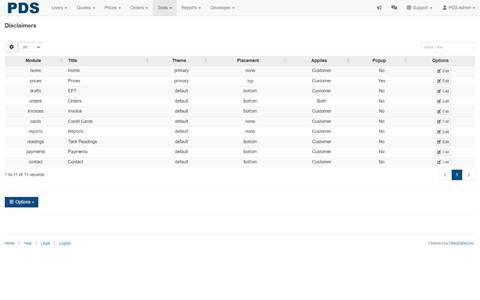
Gear Icon
Select the fields that you wish to display in the search results
Results Drop Down
The results drop down displays the number of rows or all to return in your search
Field Options
| Module | Title | Theme |
| Placement | Applies | Popup |
| Status | Created | Updated |
| Options |
|
|
Edit Disclaimer
The edit screen allows you to maintain the disclaimers in the portal
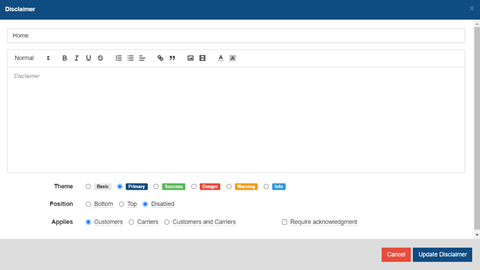
Standard Disclaimers
The edit screen allows you to maintain the disclaimers in the portal
Home Screen
Information presented in this portal including pricing, product availability, and delivery details—is subject to change without notice. Please refer to individual modules for the most current and accurate information.
Prices
Displayed prices are for reference purposes only and may vary due to supplier pricing changes or terminal product availability. All pricing, including freight rates, is based on full truckload volumes and is subject to adjustment.
Orders
To ensure timely delivery, all orders must be placed at least 24 hours in advance. The maximum allowable order volume is 8,500 gallons. Final delivery quantities may be adjusted based on tank compartment sizes or other logistical factors.
EFT (Electronic Funds Transfer)
To avoid payment delays or potential late fees, please notify us promptly of any changes to your bank account or payment information prior to your next scheduled transaction.
Invoices
Invoice details are subject to final review and verification. Pricing, taxes, and fees may be adjusted based on actual delivery conditions or supplier updates. Please contact us with any questions or if you identify discrepancies.
Credit Cards
Credit card transactions may take 1–2 business days to reflect in your account balance. Settlement amounts may include processing fees. Contact us if you notice discrepancies or require clarification.
Inventory / Tank Readings
Tank levels and inventory readings are based on the most recent available data and may not reflect real-time conditions. Variations may occur due to sensor accuracy, reporting delays, or recent activity. For mission-critical decisions, please verify readings on-site.
Reporting Module
Reports are compiled from posted system data and are provided for informational purposes only. While accuracy is a priority, data may be affected by posting delays or discrepancies. Please verify any critical information before taking operational or financial action.
Contact Form
Messages submitted via this form are reviewed during normal business hours. For urgent matters, please contact us directly by phone. Submission does not guarantee immediate response or resolution.
Reports
Invoice History
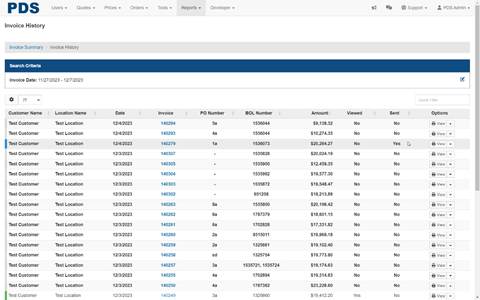
The invoice history list is used to track the status of invoices in the portal
Gear Icon
Select the fields that you wish to display in the search results
Results Drop Down
The results drop down displays the number of rows or all to return in your search
Field Options
| ID | Account | Customer name |
| Location | Location name | Date |
| Due date | Invoice | PO number |
| BOL number | Ticket | Amount |
| Balance | Viewed | Sent |
|
|
|
EFT History
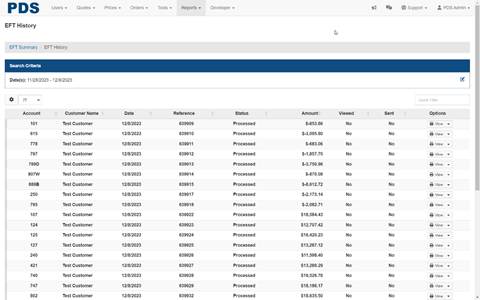
The EFT history list is used to track the status of electronic funds transfers in the portal
Gear Icon
Select the fields that you wish to display in the search results
Results Drop Down
The results drop down displays the number of rows or all to return in your search
Field Options
| ID | Account | Customer name |
| Date | Reference | Status |
| Amount | Viewed | Sent |
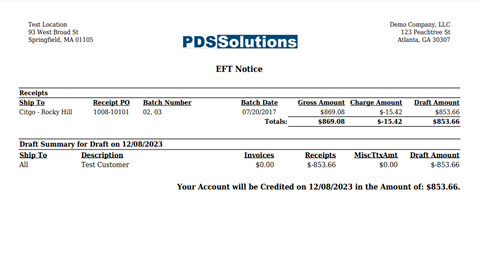
EFT Notice
The EFT notice is a report that will show the EFT transaction
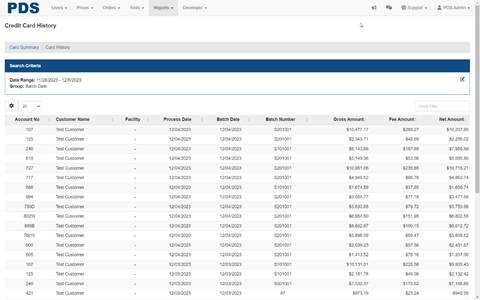
Credit Card History
The credit card history list will report the credit card transactions that have been performed
Gear Icon
Select the fields that you wish to display in the search results
Results Drop Down
The results drop down displays the number of rows or all to return in your search
Field Options
| Account ID | Account no | Customer name |
| Facility | Process date | Batch date |
| Gross amount | Fee amount | Fee adjustment |
| Net amount |
|
|
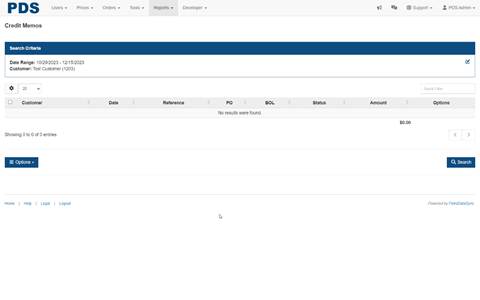
Credit Memos
The credit memo will report credit adjustments to the accounts
Gear Icon
Select the fields that you wish to display in the search results
Results Drop Down
The results drop down displays the number of rows or all to return in your search
Field Options
| Account | Customer | Date |
| Reference | PO | BOL |
| Status | Gross amt | Fee amt |
| Net amt | Amount | Balance |
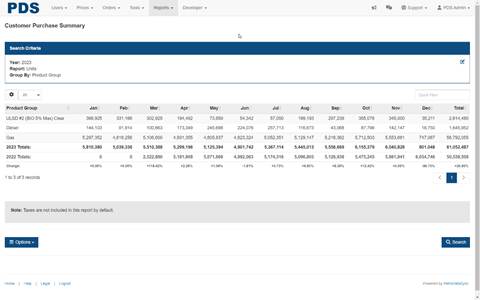
Purchase Summary
The purchase summary report shows all the purchase transactions by customer, group, type,
or sales persons
Gear Icon
Select the fields that you wish to display in the search results
Results Drop Down
The results drop down displays the number of rows or all to return in your search
Field Options
| Product Group | Jan | Feb |
| Mar | Apr | May |
| Jun | Jul | Aug |
| Sep | Oct | Nov |
| Dec | Total |
|
Account History
The account history report shows the entire account history for a specific customer and/or date range
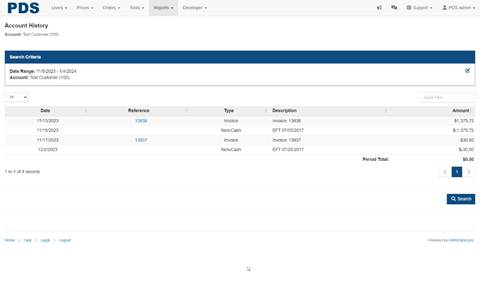
Results Drop Down
The results drop down displays the number of rows or all to return in your search
Open Transaction Summary
The open transaction summary is a listing of all open transactions in the portal
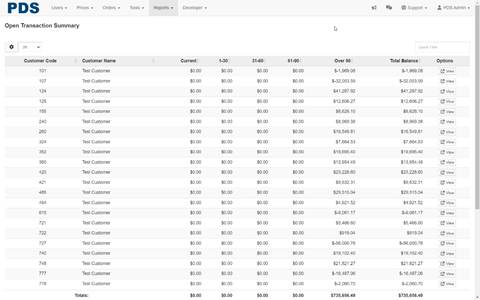
Gear Icon
Select the fields that you wish to display in the search results
Results Drop Down
The results drop down displays the number of rows or all to return in your search
Field Options
| Customer ID | Customer code | Customer name |
| Current | 1-30 | 31-60 |
| 61-90 | Over 90 | Total balance |
Payments
Settlement History
The settlement history report shows the review
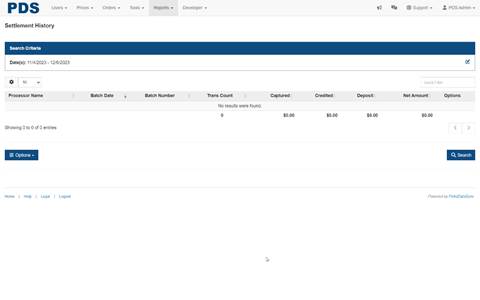
Gear Icon
Select the fields that you wish to display in the search results
Results Drop Down
The results drop down displays the number of rows or all to return in your search
Field Options
| ID | Merchant ID | Processor ID |
| Processor name | Processor type | Response code |
| Response message | Batch date | Batch number |
| Trans count | Captured | Credited |
| Surcharge | Adjustments | Deposit |
| Net amount |
|
|
Transaction History
The transaction history review
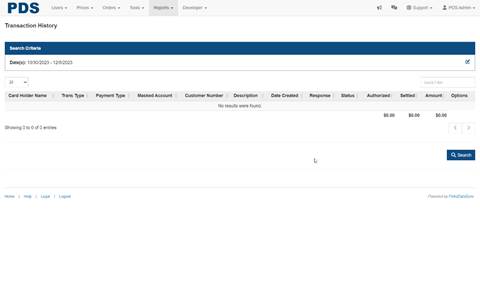
Results Drop Down
The results drop down displays the number of rows or all to return in your search
Inventory
Tank Readings
The tank readings will display information about the tanks that are being monitored by PDS
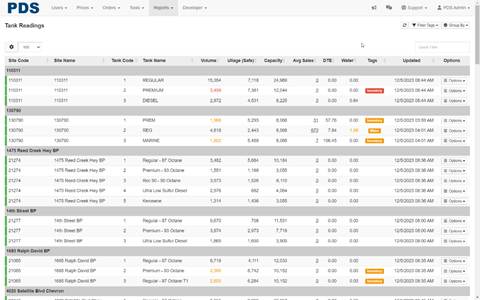
Gear Icon
Select the fields that you wish to display in the search results
Results Drop Down
The results drop down displays the number of rows or all to return in your search
Field Options
| Site ID | Site code | Site name |
| Site address | Tank sort | Tank code |
| Tank name | Product name | Volume % |
| Volume | Volume TC | Ullage |
| Ullage (Safe) | Capacity | Avg sales |
| Avg week | Ave weekday | Ave weekend |
| DTE | Height | Water |
| Temp | Tags | Updated |
| Source |
|
|
Filter Tags
Filter by site tags or alerts
Group By
Group results by site, tank, or product
ATG Reports
The automatic tank gauge reports will monitor above and below ground tanks and report that information to the portal for reporting
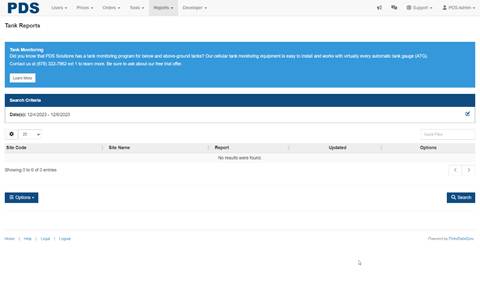
Gear Icon
Select the fields that you wish to display in the search results
Results Drop Down
The results drop down displays the number of rows or all to return in your search
Field Options
| Site ID | Site code | Site name |
| Site address | Report | Updated |
| Source |
|
|
Closing Inventory
The closing inventory report shows the closing inventory that has been reported in the portal
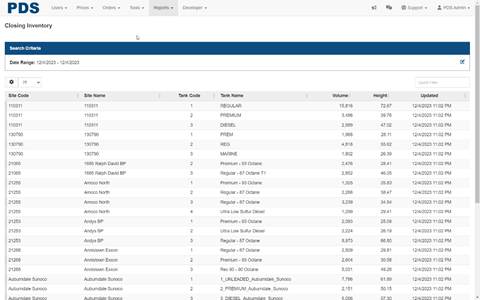
Gear Icon
Select the fields that you wish to display in the search results
Results Drop Down
The results drop down displays the number of rows or all to return in your search
Field Options
| Site ID | Site code | Site name |
| Site address | Tank code | Tank name |
| Product name | Volume | Volume (TC) |
| Height | Updated |
|