
PDS Payments Training Guide
Payments Training
Customer Master
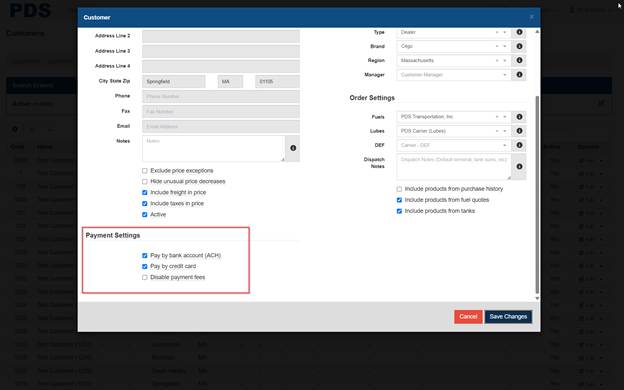
Payment Settings
Pay by bank account (ACH)
Authorize payments by bank account (ACH) for this A/R account.
Pay by credit card
Authorize payments by credit card for this A/R account.
Disable payment fees
Do not apply any applicable fees or surcharges to customer payments.
Manage Autopay
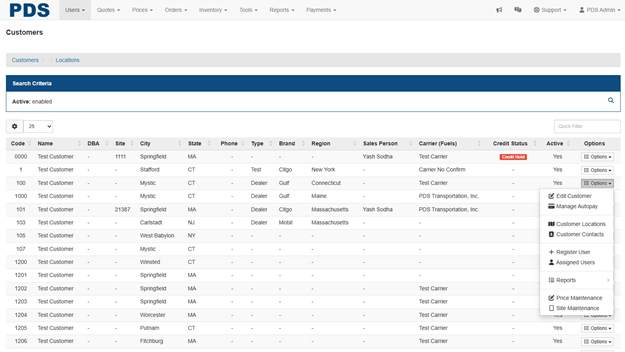
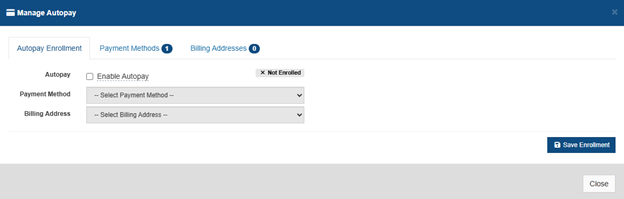
Autopay Settings
Autopay Enrollment
Authorize autopay for this customer by check the enable autopay box.
Payment Methods
Add at least one payment method to enroll in autopay.
Billing Addresses
Add at least one billing address to enroll in autopay.
User Maintenance
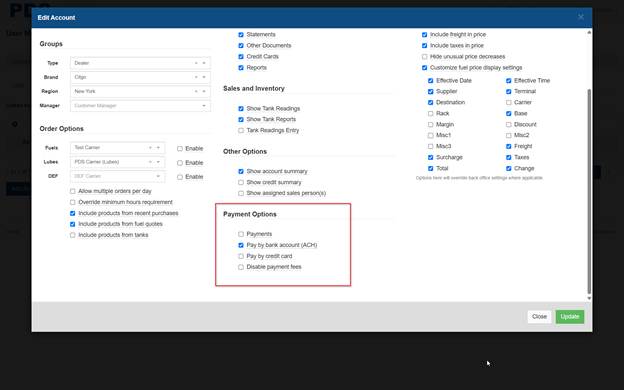
Payment Options
Payments
Enable payment options below for this user account.
Pay by bank account (ACH)
Authorize payments by bank account (ACH) for this A/R account.
Pay by credit card
Authorize payments by credit card for this A/R account.
Disable payment fees
Do not apply any applicable fees or surcharges to customer payments.
Make a payment (customer view)
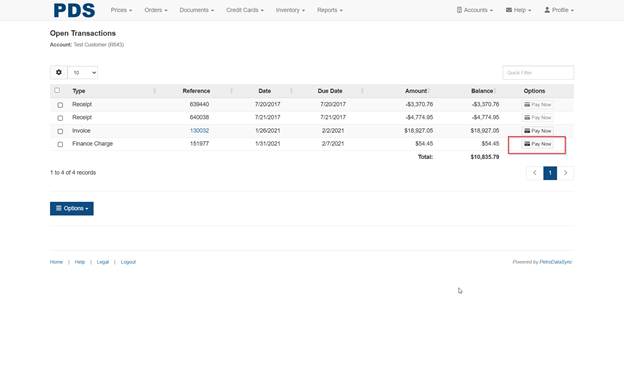
Customer View
Pay Now
The pay now button is active for any open invoice and allows customer to make payment.
Pay by bank account (ACH)
Authorize payments by bank account (ACH) for this A/R account.
Pay by credit card
Authorize payments by credit card for this A/R account.
Disable payment fees
Do not apply any applicable fees or surcharges to customer payments.
Make a payment (admin view)
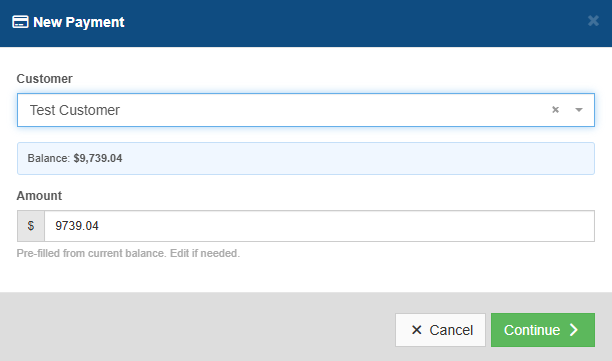
New Payment
New payment button to make a payment on behalf of customer through the Admin interface.
Customer
Select the customer account to make a payment for.
Amount
The amount will prefill based on current balance by can be override to pay any amount.
Payments Dashboard
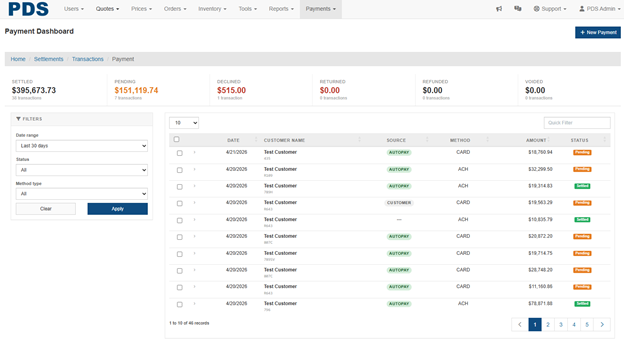
Options
Dashboard
The dashboard includes all customers that have a payment due on their account up through today’s date by default. You can filter and select by using the check box to include or exclude accounts.
New Payment
New payment button to make a payment on behalf of customer through the Admin interface.
Filters
Filters can be used to narrow your search of accounts.
Autopay
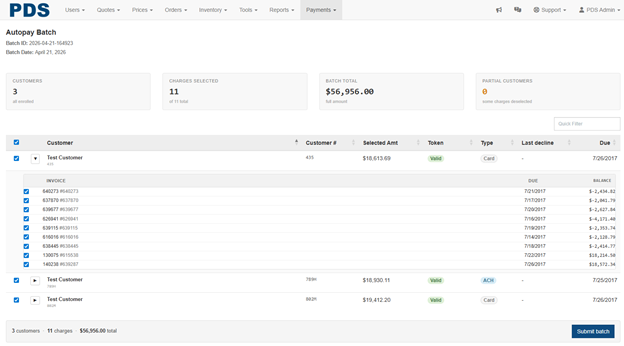
Options
Dashboard
The dashboard will display the number of customers, number of charges, and total batch amount based on the selected transactions for posting.
Customer Transactions
Select the customer transaction(s) for payment by using the check box. The arrow allows you to expand the detail to display the invoices for payment.
Submit Batch
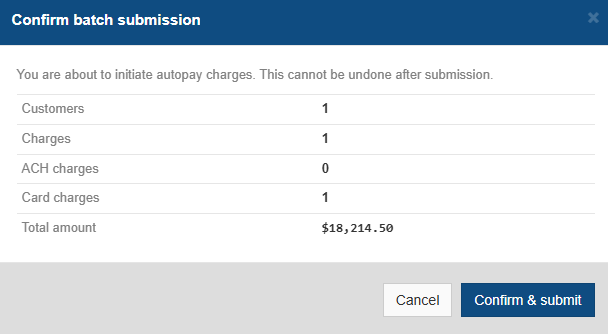
Payment Batch Confirmation
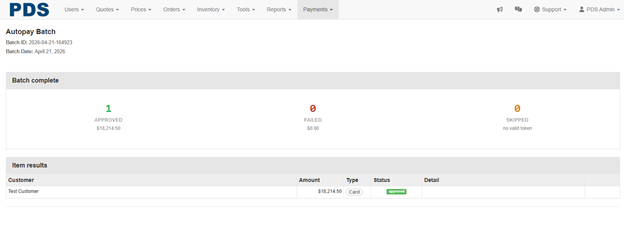
Display the batch details of posting and payments. The payments will also show on the Transactions History report.
Reports (admin view)
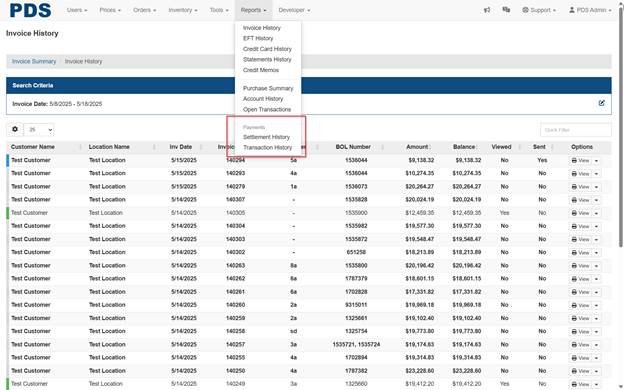
Payments
Settlements Report
The pay now button is active for any open invoice and allows customer to make payment.
Pay by bank account (ACH)
Authorize payments by bank account (ACH) for this A/R account.
Settlement History
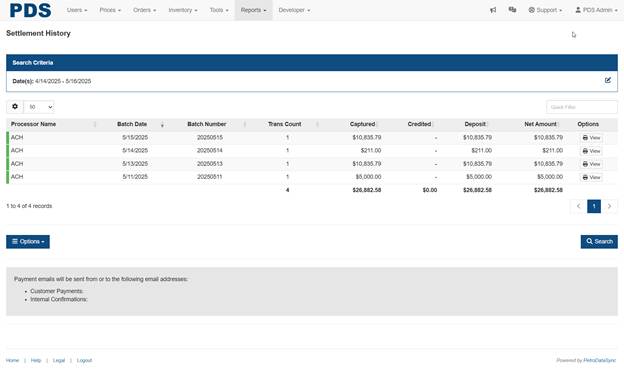
Settlement
View
The view button will display the individual transactions in this batch.
Transaction History
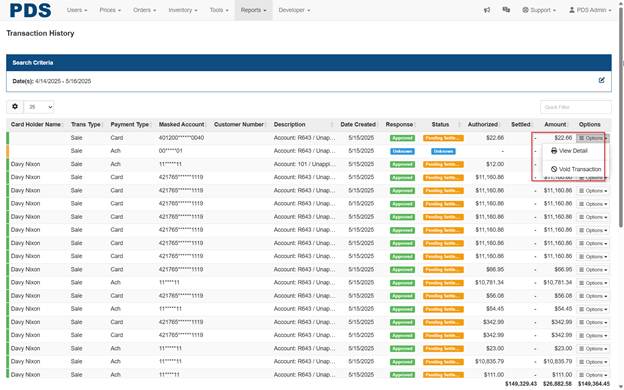
Options
View Detail
The view detail button will display the full transactional detail of the payment.
Void Transaction
The void transaction button will allow admin user to void the transaction when the payment is in a pending settlement status only.
Refund Transaction
The refund transaction button will allow admin user to refund the transaction when the payment is in a settled status only.
FAQ
Possible payment delay
Funding for the first few payments made through the portal can sometimes be delayed for processing and validation
Fees
By default, no convenience fees or surcharges are passed on to customers for payments made through the portal or apps. If desired, a flat or percentage-based fee can be enabled for credit card and/or ACH payments (many clients choose to apply a fee of around 3% for credit card payments). All fees must comply with applicable laws and card network rules.
Transaction limits
The processor works with many merchants and payment limits can vary. Higher limits can be requested by submitting 3 months of recent bank statements and copy of a profit/loss and balance sheet by the customer requesting the increase.
Payment funding
Credit Card payments are typically funded in 1 – 2 days and ACH payments are typically funded in 2-3 days.
Autopay Batches
Customer must have the autopay feature enabled in the portal.
Customer must have at least one open invoice with a due date through the current date.
Payment Methods
Payment methods are tied to the customer A/R accounts OR users. When adding from the admin interface they are tied to the A/R account and when adding from the customer interface they are added to the user's profile.
So regardless of where you add it from the admin interface it will be visible in both the autopay and the quick pay screens.
Billing Addresses
Billing addresses are tied to the customer A/R accounts OR users. When adding from the admin interface they are tied to the A/R account and when adding from the customer interface they are added to the user's profile.
So regardless of where you add it from the admin interface it will be visible in both the autopay and the quick pay screens.