
How to acknowledge tank alarms
Acknowledging an alarm tells your team that someone has seen it and is handling it. You can acknowledge one alarm or many at once from the Tank Alarms page, and add a note about what is being done.
Important: Acknowledging an alarm in PetroDataSync does not clear or silence the alarm on the ATG console. The alarm stays active until the condition is fixed and the console stops reporting it.
Who can acknowledge alarms
Any user with the Inventory permission can acknowledge alarms for the sites they already have access to. Customer and carrier users only see, and can only acknowledge, alarms for their own assigned sites.
If you don't see the Acknowledge button, ask your administrator to check your user permissions.
How to acknowledge alarms
-
Go to Inventory > Tank Alarms.
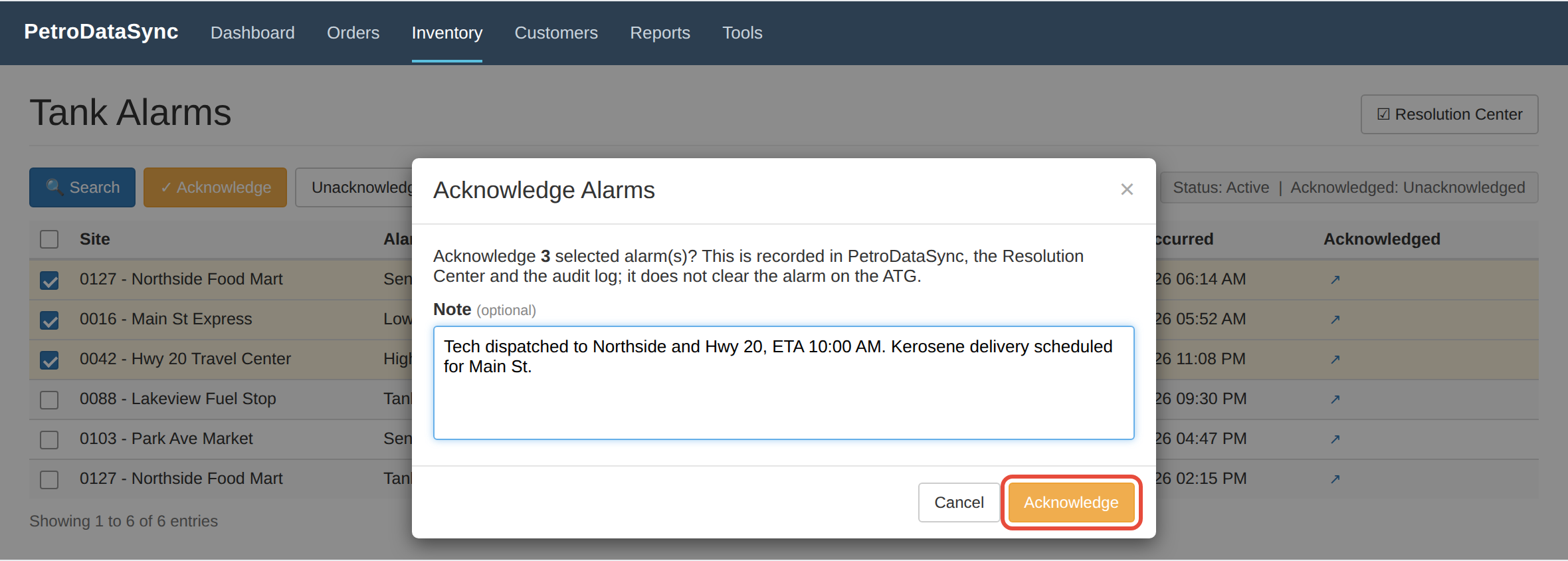
- Check the box next to each alarm you want to acknowledge. To select every alarm on the page, use the checkbox in the column header.
- Click Acknowledge.
-
Optionally, enter a note describing what is being done, such as "Tech dispatched" or "Sump pumped out." Notes can be up to 2,000 characters.
- Click Acknowledge to save.
The acknowledged alarms now appear muted in the list, and the Acknowledged column shows who acknowledged each alarm and when. A note icon appears when a note was added; hover over it to read the note.
Filtering by acknowledgement status
By default, the Tank Alarms page shows only Unacknowledged active alarms, so your team sees what still needs attention. To see acknowledged alarms:
- Click Search on the Tank Alarms page.
- In the Acknowledged filter, choose Unacknowledged, Acknowledged, or All.
- Click Search to apply.
When you export to Excel, the Acknowledged column and notes are included.
How to remove an acknowledgement
If an alarm was acknowledged by mistake, you can undo it.
- On the Tank Alarms page, set the Acknowledged filter to Acknowledged or All.
- Check the box next to the alarm.
- Click Unacknowledge and confirm.
The alarm returns to the unacknowledged list. Both the original acknowledgement and its removal are kept in the audit log.
What happens after an alarm clears
When the ATG stops reporting an alarm, it moves to Closed Alarms. The acknowledgement goes with it, so the alarm history shows who acknowledged it, when, and any note.
Each acknowledgement applies to one occurrence of an alarm. If the same alarm clears and later comes back, it shows as a new, unacknowledged alarm.
Every acknowledgement is also recorded in the PetroDataSync audit log.
To track an alarm through to resolution, click the link icon in the Acknowledged column to open it in the Resolution Center, or click Resolution Center at the top of the Tank Alarms page.
Frequently asked questions
Does acknowledging an alarm stop it on the ATG?
No. Acknowledgement is tracked in PetroDataSync only. The alarm stays active on the console until the underlying condition is corrected.
Someone already acknowledged an alarm I selected. What happens?
The original acknowledgement is kept. Your action does not overwrite who acknowledged it first or their note.
An alarm I acknowledged is showing as unacknowledged again. Why?
The alarm cleared and then came back, so PetroDataSync treats it as a new occurrence that needs attention.
Why was one of my selected alarms skipped?
It cleared on the ATG after the page loaded. Refresh the page to see the current list.