
Payments Resolution Center
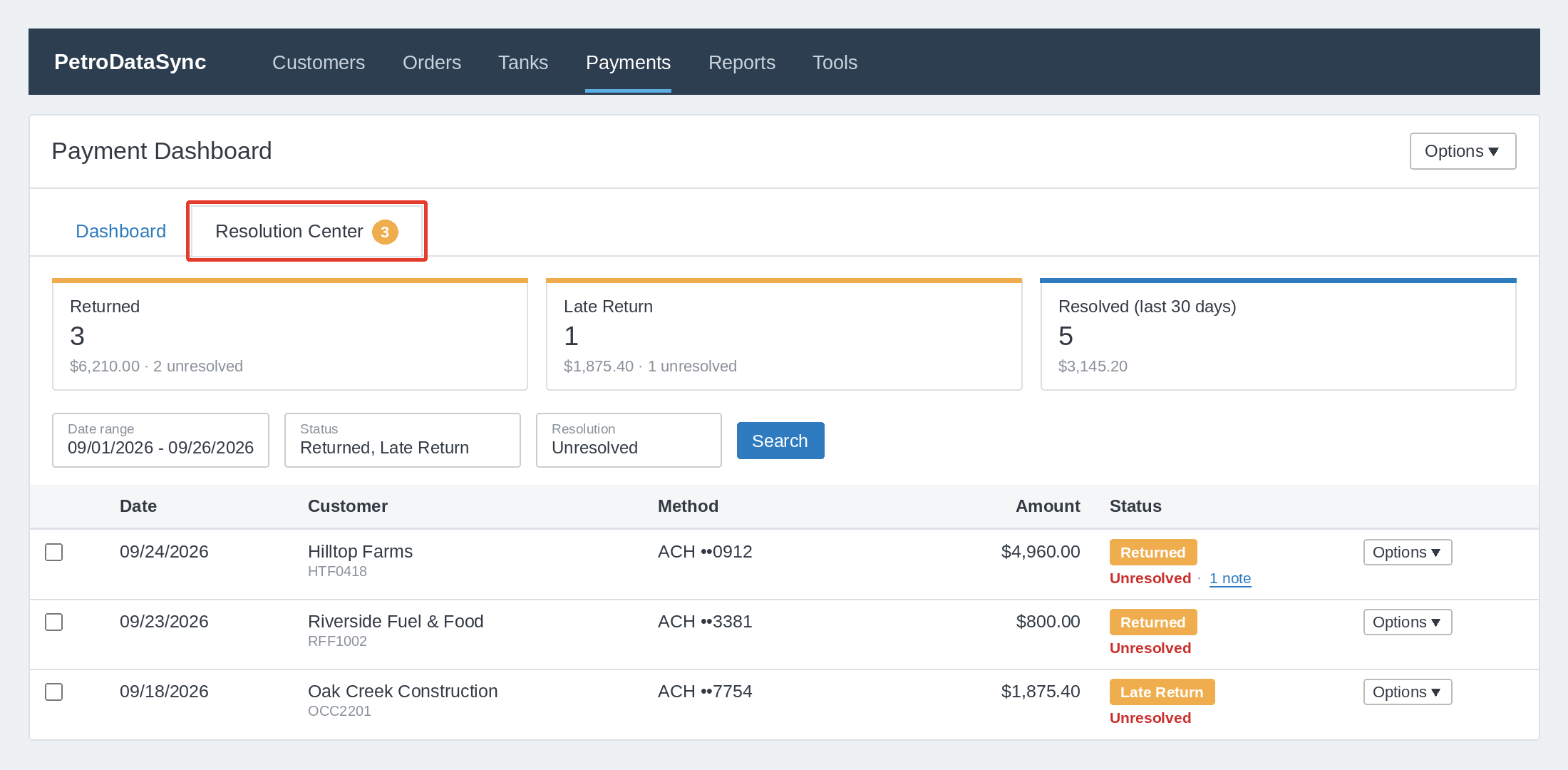
The Resolution Center gives you one place to work through ACH payments that were returned by the customer's bank. Instead of hunting through the Payment Dashboard, you can see every open returned payment, add notes about what was done, and mark each one resolved when it's handled.
Where to find it
Go to Payments > Dashboard and click the Resolution Center tab.
What shows up in the Resolution Center
Any payment with one of these statuses is tracked:
- Returned: an ACH payment was returned by the customer's bank.
- Late Return: an ACH payment was returned after the normal return window.
Each of these starts out as Unresolved and stays in the queue until someone on your team marks it Resolved. Payments with other statuses, including declined payments, can still have notes, but they don't appear in the Resolution Center and don't need to be resolved.
To see why a payment was returned, see How to find a Payment Return Reason.
Reading the status indicators
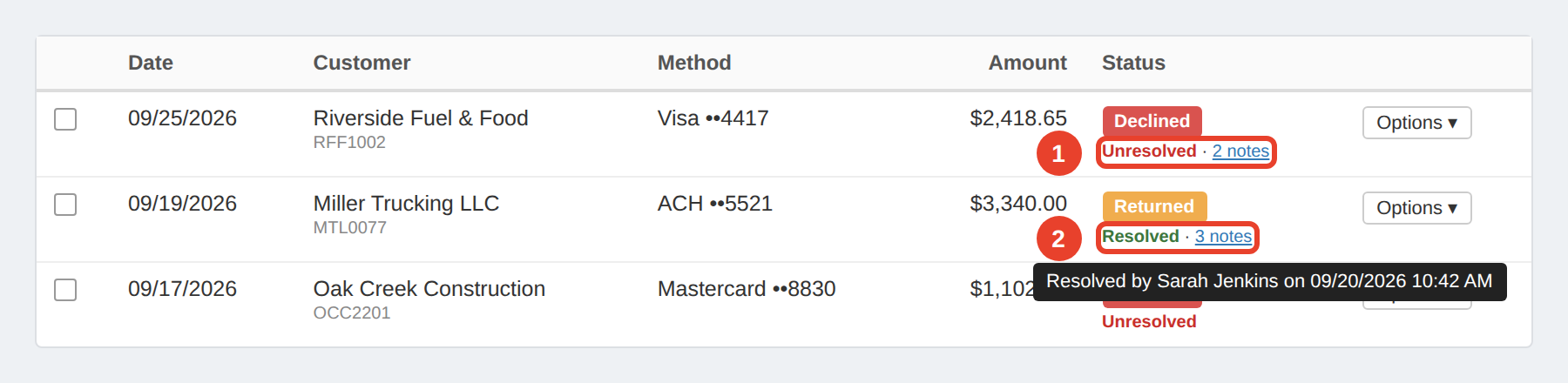
Below each payment's status you'll see a small line that shows where it stands:
- Unresolved: still needs attention.
- Resolved: handled. Hover over it to see who resolved it and when.
- N notes: how many notes have been added. Click it to open the notes.
Resolving a payment
- Find the payment in the Resolution Center.
- Click Options, then Add Note / Resolve. You can also expand the row to see the full note history.
- Enter a note describing what was done, for example "Called customer, updated card, re-ran payment."
- Click Mark Resolved.
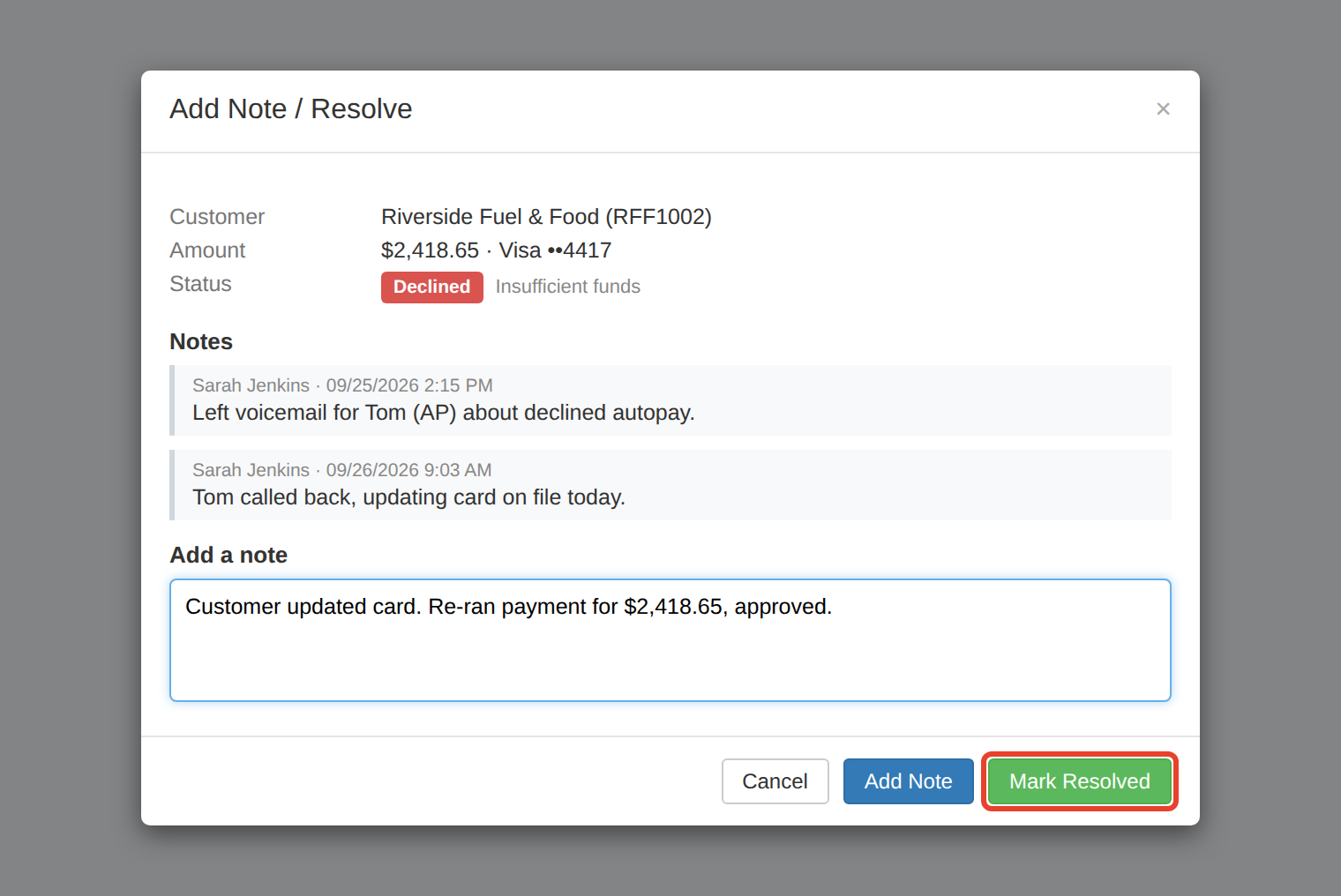
Tip: Always add a note when you resolve a payment so anyone looking later knows how it was handled.
Resolving several payments at once
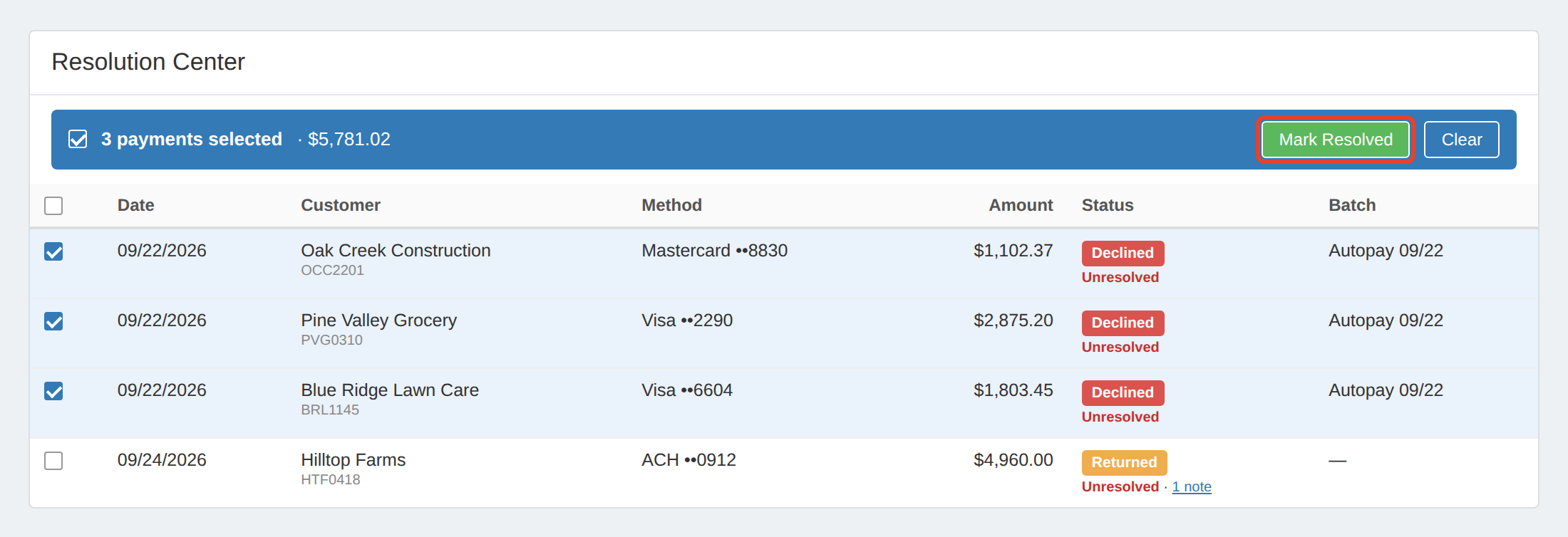
If a group of payments was fixed the same way (for example, several returns from the same customer after they updated their bank account), you can resolve them together:
- Check the box next to each payment.
- Click Mark Resolved in the selection bar.
- Enter one note that will be applied to all selected payments.
Reopening a payment
If a resolved payment needs more work, open it, add a note explaining why, and click Reopen. It will return to the Unresolved queue.
Filtering
Use the Resolution filter to show only Unresolved or Resolved payments.
Viewing notes elsewhere
Notes and resolution status also appear on:
- Payment Details, where you can add notes and resolve or reopen.
- Transactions Report, where they're view-only. Click the note indicator to read the notes.
For more on notes, see How do I add notes to a payment?
Frequently asked questions
Does resolving a payment change anything with the processor?
No. Resolving is for your team's tracking only. It does not re-run, refund, void, or change the payment at the processor. To collect the amount again, submit a new payment.
Can I delete a note?
No. Notes are kept as a permanent history of what was done on each payment.
Can customers see these notes?
No. Notes and resolution status are only visible to employees in the portal.