
How to setup forced day close on Gilbarco Passport
Setting up Forced Store Close
Depending on the configuration, Passport will automatically send out reminder messages to
store personnel on the CWS. If a Store Close is not performed manually, the system will
automatically force the Store Close.
To set up a forced Store Close, proceed as follows:
- Select Tools
- Select Manager Workstation
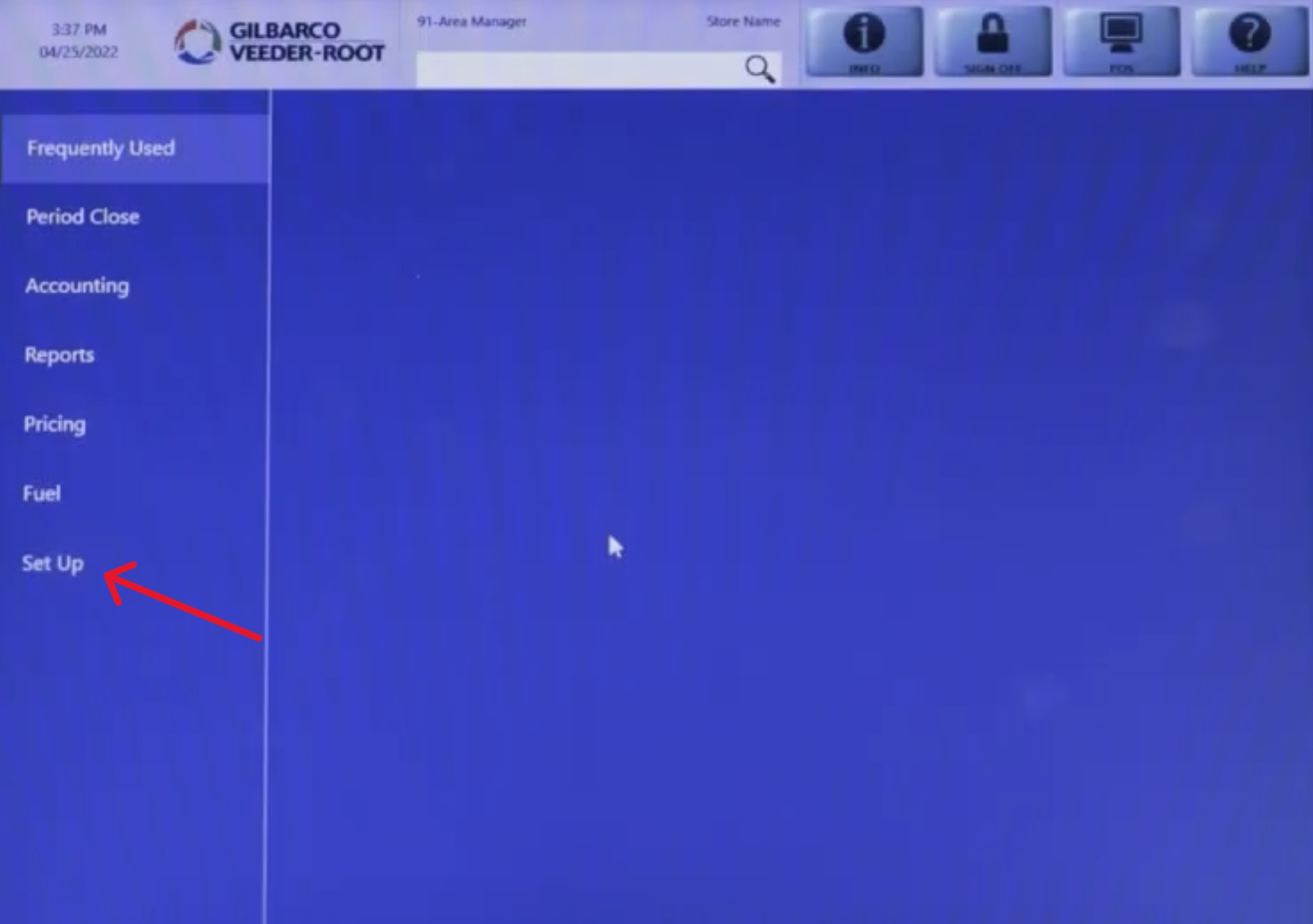
- Select Set Up from the MWS main menu.
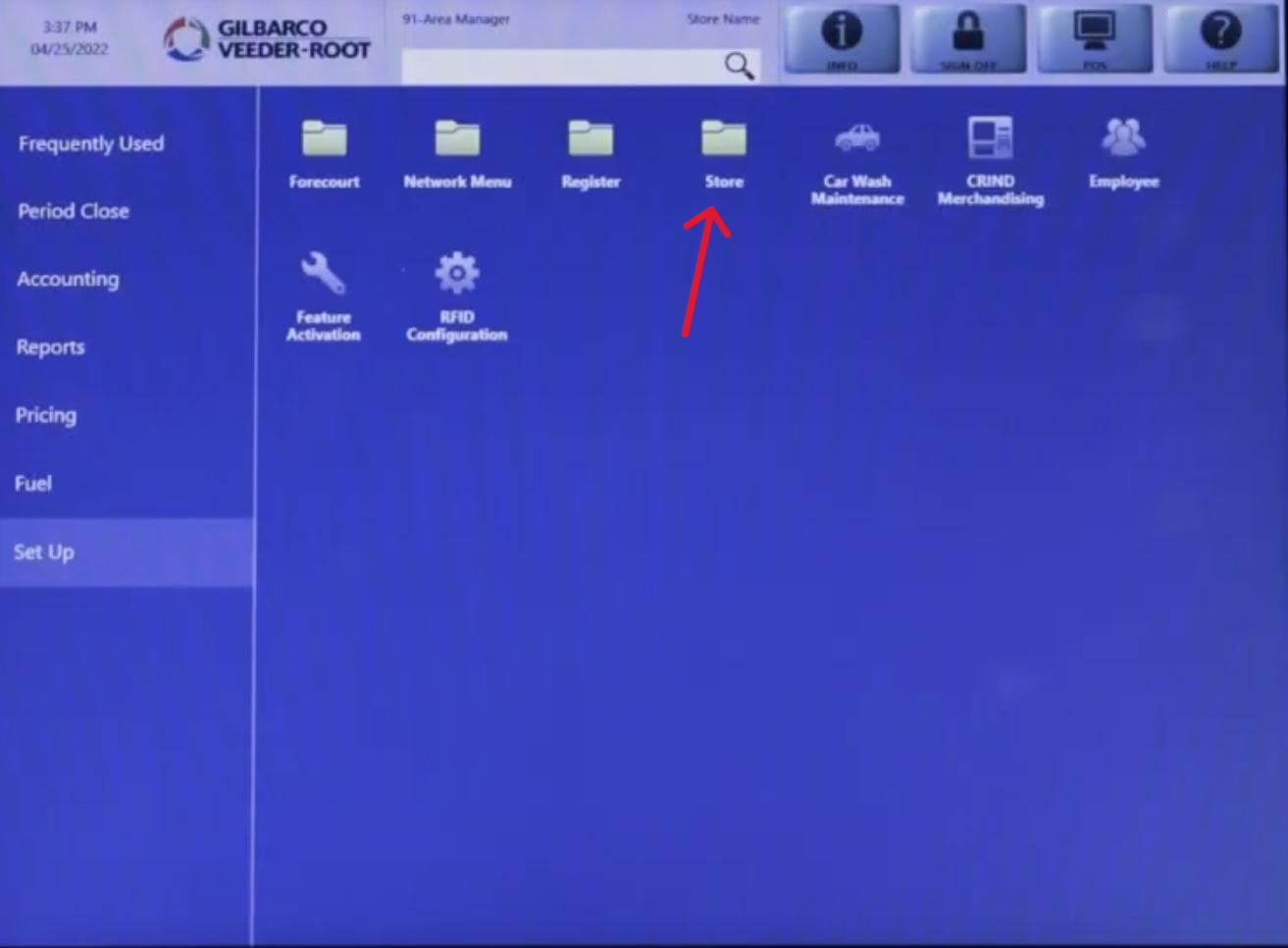
- Select Store.
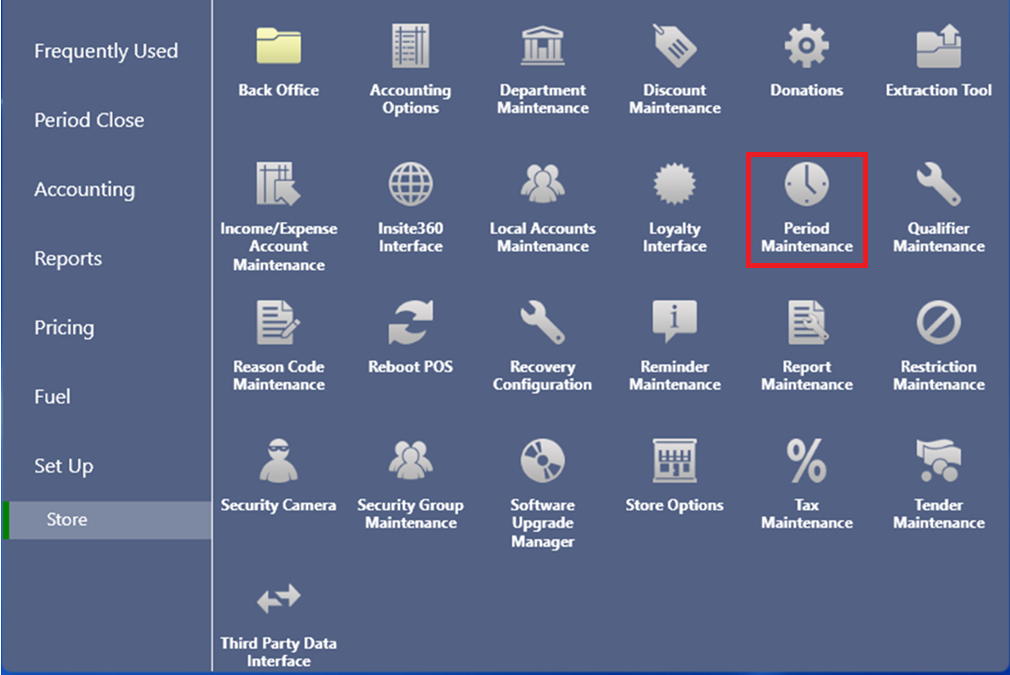
- Select Period Maintenance.
- Select the Store Close Options tab.
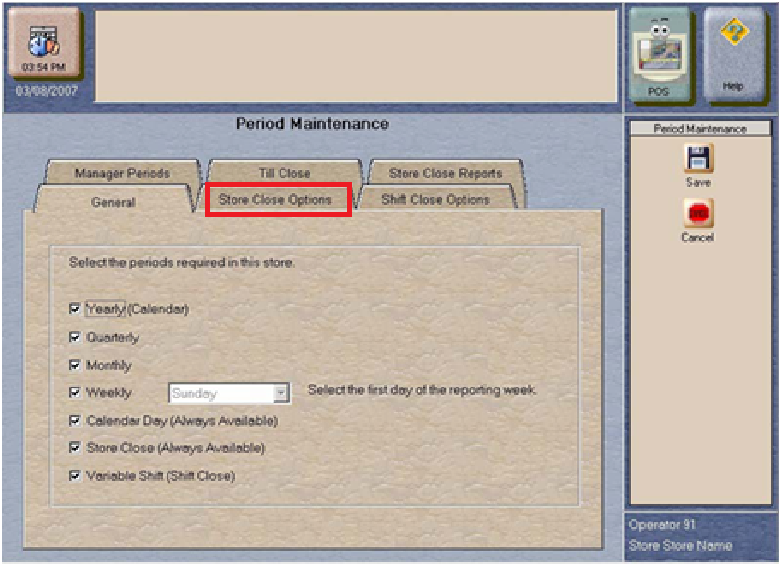
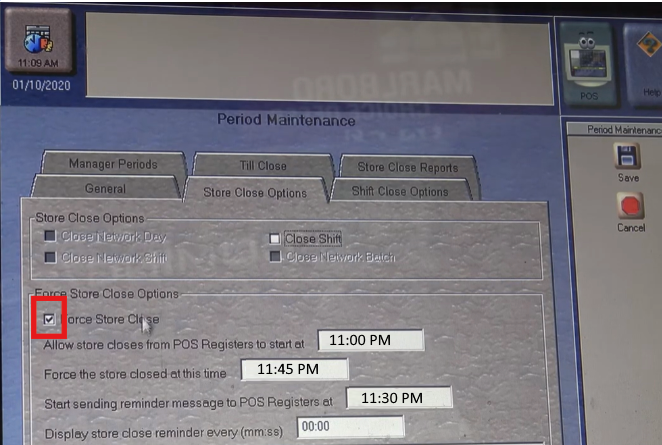
- Enable the Forced Store Close option. If not enabled, the store will not close automatically.
-
In the Allow store closes from POS Registers to start at field, enter the starting window of
time that store closes are allowed to be performed from the CWS.
-
In the Force the store closed at this time field, enter the time a store will be forced closed, if
a Store Close has not been performed
-
In the Start sending reminder message to POS Registers at field, enter the start time when
the reminder messages must be displayed on the CWS alerting cashiers that it is the time to
perform their Store Close procedures.
-
In the Display Store Close Reminder every (mm:ss) field, enter the intervals of minutes to
display the reminder messages on the CWS. An entry of zero will display no reminder
messages on the registers.
-
In the Store Close Reminder message field, enter the message that must be displayed on each
CWS, to remind cashiers that it is the time to close their Till and prepare for store closing.
- Select Save.